Add event
Setting options are:
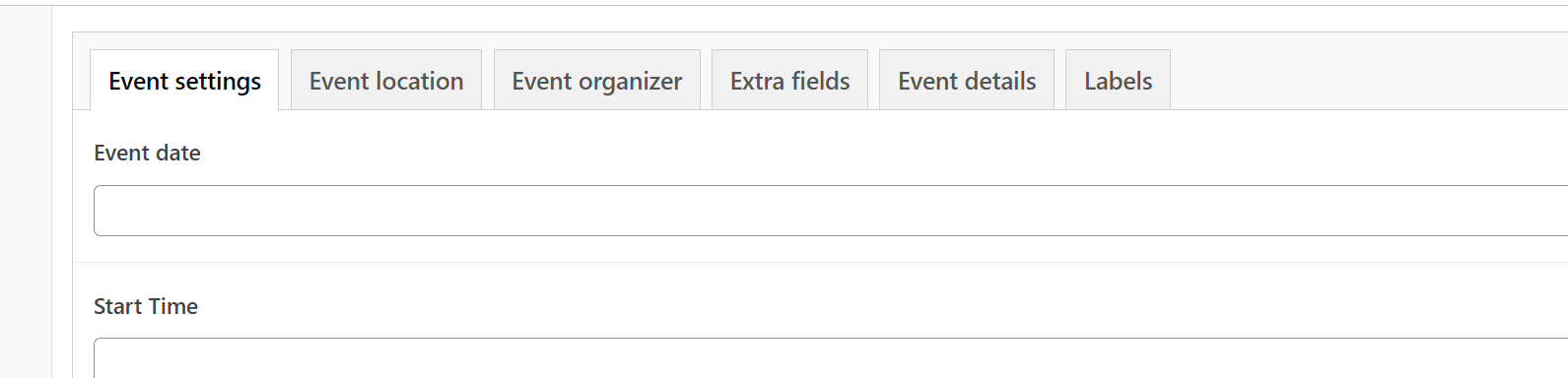
Event settings
| Option | Value | Description |
|---|---|---|
| Event date | date | This will be the date the vent will be held. The value must be a valid date |
| Start time | time | This will be the time the event will start and will be shown on the detail page and preview section |
| End time | time | This will be the time the event will end and will be shown on the detail and preview sections |
| All day | Yes/No | When this option is shown, it will indicate the event is an all-day event |
| Recurring event | Yes/No | When selected, this even will display recuring each X day |
| Recurring end | date | When set, the recurring event will have an end day, listing only up to this date |
| Number until the next event | Number | This setting sets the number of day between each recurring event. Setting this to 1 will list the event every day or setting it to 7 will display the event every 7 days. |
| Event details location | Select | This option has two paramaters, Top or Bottom. Because the calendar is a post type, any widget used for page or post creation is avalible. The calandar details has a predetermined list of details, however, you can build our a more dynamic page if you wish using page widget. This option allows you to set where the details of the event will render |
Event Location
| Option | Value | Description |
|---|---|---|
| Location | Select | This will be a listing of 'Locations' set in the 'locations' section |
| Location Name | Text | The name of a location ( Should no location be selected in the drop down ) |
| Location Address | Text | This is used in tandom with the location name. Should a location not be used you can use an event specific address. |
: Note
Locations in the location dropdown allow you to re-use a location. To have a location show in the drop-down you must first add them to the location section
Event Organizer
| Option | Value | Description |
|---|---|---|
| Organizer | Select | A dropdown representing all the event organizers |
: Note
The event organizer will display on the details page. The organizer will also have a detail page with the details inputted in on the organizer page.
Event Details
| Option | Value | Description |
|---|---|---|
| Featured image | Image | The featured image will show as part of the event details. It will also show in the calendar view preview |
| Short description | Editor | This will contain the information for your event. This information will also display in the preview window as well. |
Extra fields
| Option | Value | Description |
|---|---|---|
| Item icon | select | A drop down of icons to select from |
| Item label | text | The display text of the link |
| Item URL | URL | The url of the link ( must be full URL, including http:// |
| Item target | Select | The link target. |
: Note
The section is a repeater and can have any number of links.
Event Labels
The lebel section allows you to change the labaling on the detail page. This option allows you to change how the auto generated labeling is displayed, allowing for customiztion of:
- Table heading
- Event details
- Table heading details
- Detail values
- Event title label
- Event title
- Event date label
- Event date
- Event location label
- Event location
- Extra items
| Option | Value | Description |
|---|---|---|
| Table heading | text | The main table heading column that will contain the detailed labels |
| Table heading details | text | The main table column heading for the value |
| Event title label | text | The label in the heading column for the title |
| Event date label | text | The label for the heading column for date |
| Event location label | text | The label for the heading column for label |
| Extra fields | text | The label for the heading column for fields |
: Note
This can help with ADA OR if the labels dont actually match your naming, e.g instead of title being called 'Event details' you may wish to call it 'Seminar details'